
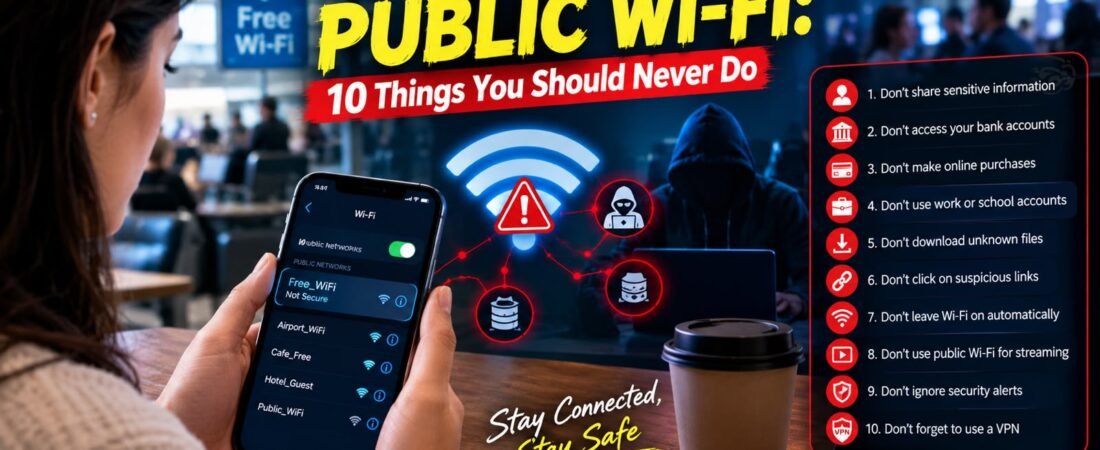
Public Wi-Fi is one of those modern conveniences that feels completely harmless right up until the exact moment it isn’t. Whether you are sipping an iced latte at a local coffee shop, waiting for a delayed flight in an airport lounge, or checking emails in a hotel lobby, free wireless networks are ubiquitous and tempting. They save our cellular data allowances and keep us connected on the go, but they are also packed with invisible security risks that most everyday users never stop to think about.
When you connect to an open router maintained by a third party, you are sharing a digital broadcast medium with total strangers. Unlike your home network—which is locked down behind WPA3 encryption and a private password—public hot spots can be easily monitored, spoofed, or manipulated by cybercriminals lurking within range. Without proper defensive habits or encrypted tunneling tools, your web traffic, personal credentials, and private files are exposed to malicious onlookers. To help you safeguard your digital life while on the move, here are ten critical things you should never do on a public network, accompanied by the technical reasons why each habit is far riskier than it seems. For deeper insights into wireless network security and mobile privacy protocols, you can explore safety reports via Electronic Frontier Foundation (EFF) alongside infrastructure analyses on The Verge Tech Desk and secure browsing guides at My Tech Hub Security Portal.
1. Stay Logged Into Apps When You’re Done: Mitigating Session Hijacking
Many users believe that simply closing a browser tab or locking their phone screen is enough to secure their online accounts. Unfortunately, modern web applications rely heavily on session tokens—temporary digital keys stored in your browser cookies that keep you authenticated so you don’t have to type your password every single time you switch pages.
The Threat of Session Side-Jacking
If you leave your email, social media, or cloud storage apps actively logged in while connected to public Wi-Fi, an attacker performing packet inspection can intercept these active session tokens. By cloning your session cookie, they can bypass your password and 2FA entirely, stepping straight into your active account. Always manually log out of sensitive web portals when you are finished using them in public spaces.
2. Access Work Files Without a VPN: Defending Corporate Networks
The explosive growth of remote work and digital nomadism has made working from cafes and co-working spaces routine. However, connecting to confidential company file servers, internal databases, or proprietary source code repositories over public Wi-Fi without an active Virtual Private Network (VPN) exposes sensitive corporate intellectual property to interception.
The Role of Corporate VPNs
Most forward-thinking employers mandate the use of a company-issued VPN for all remote connections. A VPN wraps your web traffic in an encrypted tunnel, rendering it completely unreadable to anyone monitoring the local router. If your employer does not have a strict remote-connection policy, consult your IT department immediately to establish secure tunneling protocols.
3. Make Online Purchases: Guarding Credit Card Data
Shopping online while waiting for an appointment or relaxing at a cafe seems convenient, but it requires transmitting your credit card number, billing address, and CVV security code across untrusted infrastructure. Even when shopping on sites utilizing HTTPS encryption, the general exposure level of public Wi-Fi makes impulsive online shopping a dangerous habit.
Minimizing Financial Exposure
Save your online shopping sprees, bill payments, and subscription renewals for when you are safely back home on a private network you fully control. Protecting your primary payment cards from man-in-the-middle sniffing is well worth the short delay.
4. Log Into Your Bank Account: Protecting Financial Credentials
This is the single most important rule of public wireless safety. Even if a network looks legitimate and requires a terms-of-service click to enter, public Wi-Fi is relatively easy for a skilled attacker to monitor, intercept, or spoof. Logging into your bank accounts, credit card portals, or investment platforms on a public network is one of the fastest ways to hand your raw login credentials directly to a stranger.
Why Banking on Public Wi-Fi is Dangerous
When you input your username, password, and multi-factor authentication codes over unsecured airwaves, packet sniffers running on compromised nodes can potentially capture your session parameters.
- The Smarter Alternative: Always handle your financial transactions and balance checks over your phone’s encrypted cellular data network (LTE/5G), which is exponentially harder for local attackers to intercept. For more tips on mobile data hygiene and safe online banking, check out resources via My Tech Hub Mobile Tech Portal or financial security guides on PCMag Security Lab.

5. Share Sensitive Files: Securing Documents in Transit
Sending legal contracts, medical charts, tax documents, or proprietary business spreadsheets over public Wi-Fi puts private data at risk. Even if files are nominally encrypted, metadata leaks or insecure cloud-sharing links can expose confidential information.
Secure File-Sharing Workarounds
If you absolute must share critical files while working remotely:
- Turn on your smartphone’s secure cellular hotspot rather than connecting your laptop to the venue’s public router.
- Ensure files are compressed into password-protected, encrypted archives (such as AES-256 encrypted ZIP files) before transmitting them across any external network.
6. Connect to Networks You Don’t Recognize: Avoiding “Evil Twin” Traps
One of the oldest and most effective tricks in the cybercriminal playbook is the “Evil Twin” attack. An attacker sets up a rogue wireless router nearby and names it something deceptively familiar—such as Starbucks_Free_WiFi or Airport_Lounge_Guest.
Spotting Fake Hotspots
When your device automatically connects to this malicious clone thinking it is the authentic venue network, the attacker gains total visibility over your web traffic.
- Proactive Defense: Always ask a staff member to confirm the exact, official Wi-Fi network name and security requirements before connecting your devices in public venues.
7. Leave Your File Sharing or AirDrop on: Locking Down Local Discovery
Features like Apple’s AirDrop, Windows Nearby Sharing, and local network file discovery are incredible conveniences when sharing files with friends, but they become massive security vulnerabilities in crowded public spaces.
Preventing Unsolicited Local Intrusions
Leaving local discovery wide open on public networks allows nearby strangers to bombard your screen with unsolicited file transfers, spam images, or malicious payload prompts.
- Best Practice: Turn off AirDrop entirely or restrict it strictly to “Contacts Only,” and disable network folder sharing the moment you step onto public Wi-Fi.
8. Update Passwords: Preventing Credential Interception
If you realize your password has been compromised and decide to change it while sitting on public Wi-Fi, you are paradoxically broadcasting your new, highly sensitive master credentials across an unencrypted or easily monitored local network.
Timing Your Security Updates
Always wait until you return home or switch to a trusted cellular connection before resetting account passwords, generating new master keys, or updating security credentials. Giving attackers a front-row seat to your password change is a risk easily avoided by exercising a little patience.
9. Assume ‘https’ Means You’re Completely Safe: Understanding Encryption Limits
Many internet users operate under the false assumption that seeing the padlock icon or https:// prefix in their browser address bar makes them 100% bulletproof against all forms of cyber surveillance.
What HTTPS Actually Protects
While HTTPS encrypts the specific content flowing between your browser and a web server (stopping eavesdroppers from reading your chat messages or passwords), it does not hide which websites you are visiting (your DNS requests and domain SNI headers remain visible), nor does it protect your device if the local router itself has been compromised with malware. Treat HTTPS as a vital safety layer, not an absolute guarantee of network immunity.
10. Stay Connected When You’re Not Actively Using It: Closing Background Windows
Allowing your smartphone or laptop to automatically scan for and connect to known public Wi-Fi networks in the background leaves your device exposed even when you aren’t actively browsing the web.
Closing Vulnerable Windows
- Smart Habits: Turn off the “Auto-Connect” feature for public networks, and disable your device’s Wi-Fi radio entirely when walking through transit hubs or public streets. This small, effortless habit closes off a persistent background vulnerability.
The Simplest Fix: Deploying a Reliable VPN
If your daily workflow or travel schedule requires regular reliance on public Wi-Fi networks, acquiring and utilizing a reputable Virtual Private Network (VPN) is non-negotiable.
Why a VPN is Essential
Turning on your VPN before connecting to any public hotspot creates an impenetrable, encrypted data tunnel between your device and a secure remote server. It masks your real IP address, scrambles your DNS queries, and renders your browsing traffic entirely invisible to local sniffers and router-level snoops. While no security tool makes you completely invulnerable to every sophisticated threat vector, a quality VPN transforms you from an easy target into a virtually unreadable cipher. For further technical guidance on selecting audited zero-log VPN providers, explore reviews via Wirecutter Security Lab or research insights from Ars Technica Security Lab.

Public Wi-Fi Security Reference Matrix
To summarize the key risks and defensive protocols associated with open wireless networks, reference the matrix below:
| Public Wi-Fi Risk | Potential Threat Vector | Recommended Defensive Protocol |
|---|---|---|
| Open Banking Access | Packet sniffing, credential theft | Use cellular data (LTE/5G) for all financial tasks |
| Abandoned Sessions | Session token hijacking | Manually log out of all web apps when finished |
| Remote Work Exposure | Man-in-the-middle data sniffing | Always connect through a secure corporate VPN |
| E-Commerce Scams | Payment intercept, card skimming | Save online shopping for trusted private networks |
| Unverified Hotspots | Evil Twin rogue router traps | Verify official network names with venue staff |
| Open Local Discovery | AirDrop spam, unauthorized file pushes | Disable AirDrop and local folder sharing in public |
Frequently Asked Questions (FAQ)
Q1: Is hotel Wi-Fi safer than coffee shop Wi-Fi?
A: Not necessarily. While hotel networks often require a room number and last name to log in, these portals rarely encrypt local traffic between guests. An attacker staying in the same hotel can easily sniff traffic across the shared guest subnet unless a personal VPN is active.
Q2: Does turning off Wi-Fi save battery life on my phone?
A: Yes. When your Wi-Fi radio is left enabled in public areas, your phone continuously broadcasts probe requests searching for known networks, which consumes battery power. Disabling Wi-Fi when roaming outdoors preserves battery and blocks auto-connect risks.
Q3: Are free public Wi-Fi networks ever truly secure?
A: Very rarely. Unless a network utilizes WPA3 Enterprise encryption with individual user authentication keys (common in secure corporate or university campuses), open public hot spots should always be treated as hostile and untrusted environments.
Conclusion: Practice Digital Self-Defense Everywhere
Public Wi-Fi is an incredible convenience, but treating open airwaves with casual indifference is a gamble your personal data shouldn’t have to take. By avoiding high-risk activities like online banking, shopping, and accessing work files on unencrypted networks—and by adopting disciplined habits like disabling auto-connect and always running a trusted VPN—you can enjoy mobile connectivity without sacrificing your digital safety. Stay vigilant, protect your credentials, and never assume an open network is looking out for your privacy.