Introduction: The Endless Microsoft 365 Subscription Fatigue
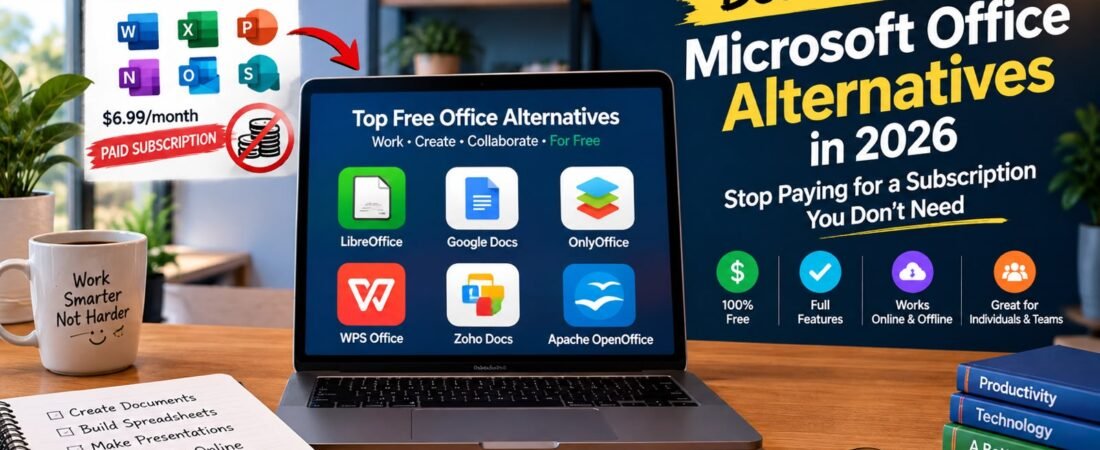
For decades, Microsoft Office stood as an undisputed, mandatory fixture of modern computing. Whether you were drafting a school essay in Microsoft Word, balancing household budgets in Microsoft Excel, building slide decks in PowerPoint, or managing professional correspondence through Outlook, owning a Microsoft productivity suite was as essential as having an operating system. However, the modern software landscape has shifted dramatically. Microsoft’s aggressive transition to a recurring cloud subscription model (Microsoft 365) means that instead of buying software once, consumers and small business owners are locked into perpetual monthly or annual fees just to keep basic text editors and spreadsheets running.
For millions of home users, students, freelancers, and small business owners, paying a continuous annual tribute for features they rarely touch has become an exhausting financial burden. The fantastic news is that you no longer have to pay for a Microsoft Office subscription to get your work done.
Due to advancements in cloud computing, open-source software engineering, and collaborative online platforms, free alternatives to almost every Microsoft application are now available. Be it a word processing software that prioritizes collaboration using cloud technology, a desktop software that can be used offline, or database management software that offers unlimited functionalities, free tools are accessible.
With the help of our detailed guide, we will examine the best free Microsoft Office alternatives available in 2026. We will look at how they compare in terms of their features, where they are better, where they fall short, and assist you to determine if you are ready to discontinue your Microsoft subscription. For broader perspectives on office productivity software trends and workspace automation, you can explore reports via The Verge Productivity Desk alongside enterprise software analyses from ZDNet Software Hub and digital workflow tips at My Tech Hub Software Directory.
1. Instead of Microsoft Word: Google Docs for Real-Time Collaboration
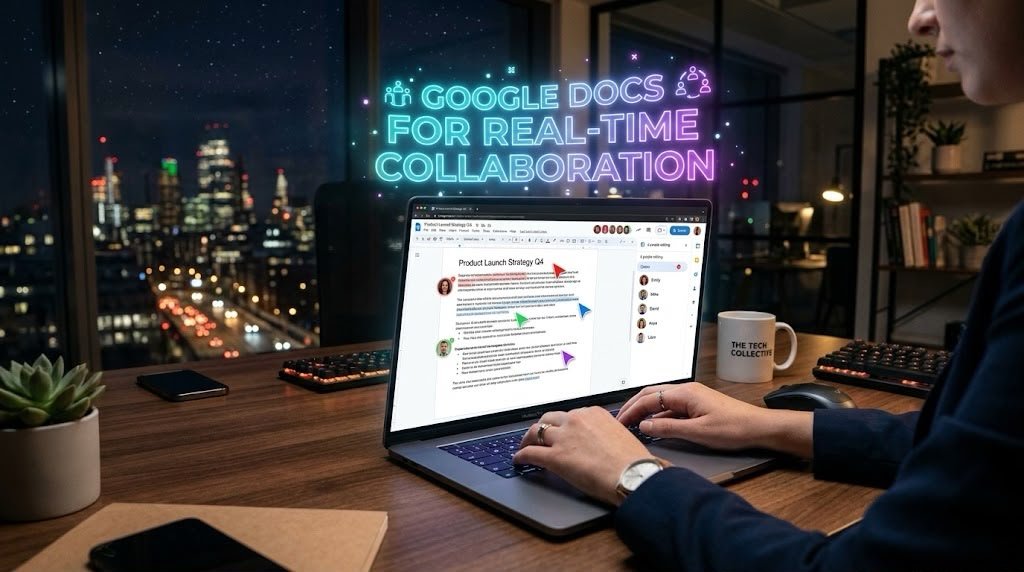
When it comes to replacing Microsoft Word without spending a dime, Google Docs stands as the undisputed champion of web-first document creation. Available entirely for free through any standard Google account, Docs operates directly inside your web browser without requiring heavy local software installation.
Why Google Docs Dominates Everyday Writing
Google Docs is clean, highly accessible, auto-saves your work continuously to cloud storage, and features peerless real-time multi-user collaboration. If you work in a team environment where multiple people need to review, comment on, and edit the same document simultaneously, Google Docs handles collaborative workflows significantly better than desktop-bound Word documents ever could.
- Universal Accessibility: Because your files live in Google Drive, you can seamlessly start writing an article on your home desktop, review edits on your tablet during a commute, and polish the final paragraphs on your smartphone.
- Zero Maintenance: No manual saving, no corrupted files from unexpected power outages, and zero software update installers to sit through.
Where Google Docs Falls Short
While Google Docs is an exceptional tool for 90% of everyday writing tasks, its formatting and typesetting engine is simpler than Word. If you are formatting massive academic theses requiring complex bibliography management, intricate custom multi-tier tables, or advanced desktop publishing layouts, Docs can feel somewhat restrictive. Furthermore, while offline mode has improved dramatically, it still relies primarily on an active internet connection. For deeper reviews on collaborative writing apps, check out resources via PCMag Software Lab or tech guides on My Tech Hub Innovation Blog.
2. Instead of Microsoft Word (Offline Desktop Option): LibreOffice Writer
If your digital workflow demands a powerful desktop-installed application that operates completely offline, respects your privacy locally, and handles massive, complex Word formatting without internet access or subscription fees, LibreOffice Writer is your definitive solution.
The Power of Open-Source Desktop Productivity
LibreOffice is a mature, fiercely maintained open-source office suite developed by The Document Foundation. Writer is its flagship word processing application, designed to look and function similarly to traditional Microsoft Office layouts.
- Native .docx Compatibility: LibreOffice reads and writes Microsoft Word files (
.docx) natively, meaning you can open client documents, edit them offline, and save them back in Word format without losing core structural integrity. - Advanced Formatting Control: Unlike lightweight web editors, LibreOffice Writer supports complex page numbering, multi-column sections, advanced custom styles, embedded vector graphics, and detailed index generation.
Potential Limitations
LibreOffice is entirely free and open source, but it lacks the slick, modern visual polish of Microsoft 365. Also, opening super- Complicated Word files filled with custom macros or difficult SmartArt components may involve some changes in formatting or font in rare instances. But for users who prefer to remain offline and hate the eternal dependency on cloud services, it is still a powerful tool.
3. Instead of Microsoft Excel: Google Sheets for Data and Budgets
Spreadsheet applications are notoriously difficult to replace because power users rely on deeply ingrained formulas, pivot tables, and macro scripts. For the vast majority of everyday spreadsheet tasks, however, Google Sheets offers a remarkably robust, free alternative.
What Google Sheets Does Exceptionally Well
Google Sheets manages the daily organization of data like monthly budgets, project milestones, inventory lists, simple calculations, and sleek charting.
- Effortless Team Collaboration: Just like Google Docs, Sheets allows multiple collaborators to work inside the exact same spreadsheet simultaneously, viewing cell selections and leaving comments in real-time.
- Cloud Automation: Integration with Google Apps Script allows users to automate repetitive tasks and connect spreadsheets to external web APIs without purchasing expensive enterprise licenses.
Where Google Sheets Hits Its Ceiling
If your daily profession involves crunching millions of rows of raw data, running complex computational macros, or constructing massive multi-source financial models, you will eventually hit Google Sheets’ computational ceiling. For standard business tracking, personal budgeting, and team organization, Sheets is more than enough; for heavy-duty data science, desktop Microsoft Excel still holds an edge.
4. Instead of Microsoft PowerPoint: Google Slides (and Canva)
Presentations are designed to communicate ideas visually and persuasively. While Microsoft PowerPoint has historically dominated corporate boardrooms and university lecture halls, Google Slides provides a clean, cloud-native alternative that covers standard presentation needs brilliantly.
Streamlined Slide Design
Google Slides strips away PowerPoint’s overwhelming wall of advanced menus, focusing instead on a streamlined, intuitive interface that lets you build clean slide decks quickly.
- Instant Collaboration: Team members can co-author presentations simultaneously, making group school projects or corporate slide reviews painless.
- The Canva Alternative: For users who want visually stunning, professionally polished presentation templates with breathtaking animations and graphic design assets, Canva serves as another world-class alternative. Canva’s presentation builder is exceptionally modern and exports smoothly into standard PowerPoint format if your presentation destination requires it.
5. Instead of Microsoft Outlook: Gmail + Google Calendar
For millions of corporate workers, Microsoft Outlook functions as the central nervous system for email communication, contact management, and calendar scheduling. If you are an independent professional, student, or small business owner, locking yourself into Outlook is entirely unnecessary.
The Google Communication Hub
Combining Gmail and Google Calendar replicates and often surpasses everything most users require from Outlook.
- Unified Workspace: Gmail delivers industry-leading spam filtering, lightning-fast search capabilities, and intelligent email categorization.
- Seamless Scheduling: Google Calendar integrates directly with your email stream, automatically parsing flight confirmations, dinner reservations, and meeting invites into your schedule while supporting video conferencing via Google Meet.
6. Instead of Microsoft OneNote: Notion (Free Plan)
Microsoft OneNote is a popular digital notebook tool, but for modern digital organization, Notion has redefined how people capture ideas, manage projects, and build personal knowledge bases.
The Flexibility of Notion
Notion’s generous free tier provides individuals with a blank canvas that functions as a notes app, task manager, database, and wiki all rolled into one.
- Modular Block Structure: Instead of static pages, Notion uses dynamic blocks (text, toggles, databases, Kanban boards, calendars) that you can arrange however you see fit.
- Deep Organization: For researchers, students, and writers who need to connect related notes across multiple workspaces, Notion offers an organizational depth that leaves traditional note-taking apps far behind.
7. Instead of Microsoft Publisher & Access: Open-Source Design and Databases
For completeness, users looking to replace Microsoft Publisher (desktop publishing) or Microsoft Access (database management) can turn to powerhouse open-source tools like Scribus for professional page layout and publishing, and LibreOffice Base or Supabase/Airtable for lightweight relational database management. These tools bring professional-grade publishing and data structuring to your desktop without any licensing fees.

8. The One Scenario Where Microsoft Office Is Worth Paying For
Despite the incredible maturity and capability of free alternatives, there remains one specific operational scenario where purchasing a paid Microsoft 365 subscription is genuinely justified: heavy, complex corporate interoperability.
When to Stick with Microsoft Office
If your daily employment requires constant, back-and-forth collaborative editing of massive, highly complex Word documents packed with tracked changes, custom XML tags, and corporate formatting macros—or if you manage financial models in Excel that depend on advanced VBA macros and power-query data connections built specifically for Microsoft—free alternatives will likely frustrate you.
While compatibility has improved exponentially over the years, file translation discrepancies still happen. If formatting quirks, broken formulas, or misaligned margins cost your business billable hours, the annual subscription cost of Microsoft Office pays for itself. For everyone else—students, home users, freelancers, and modern small businesses—the free alternatives are more than sufficient.
Comprehensive Price & Feature Comparison Reference Guide
To help you decide which office tools best fit your workflow and budget, review the comprehensive comparison breakdown below:
| Application Category | Paid Industry Standard | Best Free Cloud Alternative | Best Free Offline Alternative | Estimated Cost Comparison |
|---|---|---|---|---|
| Word Processing | Microsoft Word ($69.99/year via Microsoft 365) | Google Docs (Free) | LibreOffice Writer (Free & Open Source) | $0 vs. $70+ per year |
| Spreadsheets & Data | Microsoft Excel ($69.99/year via Microsoft 365) | Google Sheets (Free) | LibreOffice Calc (Free & Open Source) | $0 vs. $70+ per year |
| Presentations & Slides | Microsoft PowerPoint ($69.99/year via Microsoft 365) | Google Slides / Canva (Free Tiers) | LibreOffice Impress (Free & Open Source) | $0 vs. $70+ per year |
| Email & Calendar | Microsoft Outlook (Included in 365 / Paid) | Gmail + Google Calendar (Free) | Thunderbird Desktop Client (Free) | $0 vs. Paid Enterprise tiers |
| Notes & Organization | Microsoft OneNote (Free / Premium tiers) | Notion (Generative Free Plan) | Obsidian (Free local markdown) | $0 vs. Premium upgrade fees |
Frequently Asked Questions (FAQ)
Q1: Will opening a Microsoft Word file in Google Docs mess up my formatting?
A: For standard documents containing text, basic tables, and standard headings, formatting usually translates cleanly. However, documents utilizing complex custom fonts, advanced section breaks, or embedded macros may experience minor visual shifting.
Q2: Can I use LibreOffice files on my smartphone?
A: While LibreOffice is primarily built for desktop operating systems (Windows, Mac, Linux), companion apps like Collabora Office (built on the same open-source engine) allow you to view and edit ODF and Office files on Android and iOS devices.
Q3: Are my files secure when stored in free cloud office suites like Google Drive?
A: Yes, major cloud providers utilize robust encryption both in transit and at rest. However, if you handle hyper-sensitive personal or financial data and prefer absolute privacy, storing encrypted files locally while using offline tools like LibreOffice is the most secure approach.
Conclusion: Reclaim Your Budget and Cancel the Subscription
The monopoly that once forced consumers into paying perpetual software subscription fees is officially broken. You no longer need to shell out hard-earned cash year after year just to write a letter, balance a spreadsheet, or put together a presentation.
By strategically adopting tools like Google Docs, Sheets, LibreOffice Writer, and Notion, you can build a lightning-fast, highly efficient digital workspace tailored precisely to your personal workflow—completely free of charge. Assess your actual day-to-day software needs, test out a few free alternatives today, and keep that subscription money in your own pocket where it belongs.